Overview
CheddrSuite allows you to attach quizzes to documents to test staff comprehension. Staff must pass the quiz before the document is marked as complete on their profile.
Step 1: Navigate to Documents
Click Documents in the left navigation menu. Locate the document you want to add a quiz to, or upload a new document first.
Step 2: Add a Quiz to a Document
Click the Quiz button next to a document in the Document Library. This opens the quiz builder for that specific document.
Step 3: Create Quiz Questions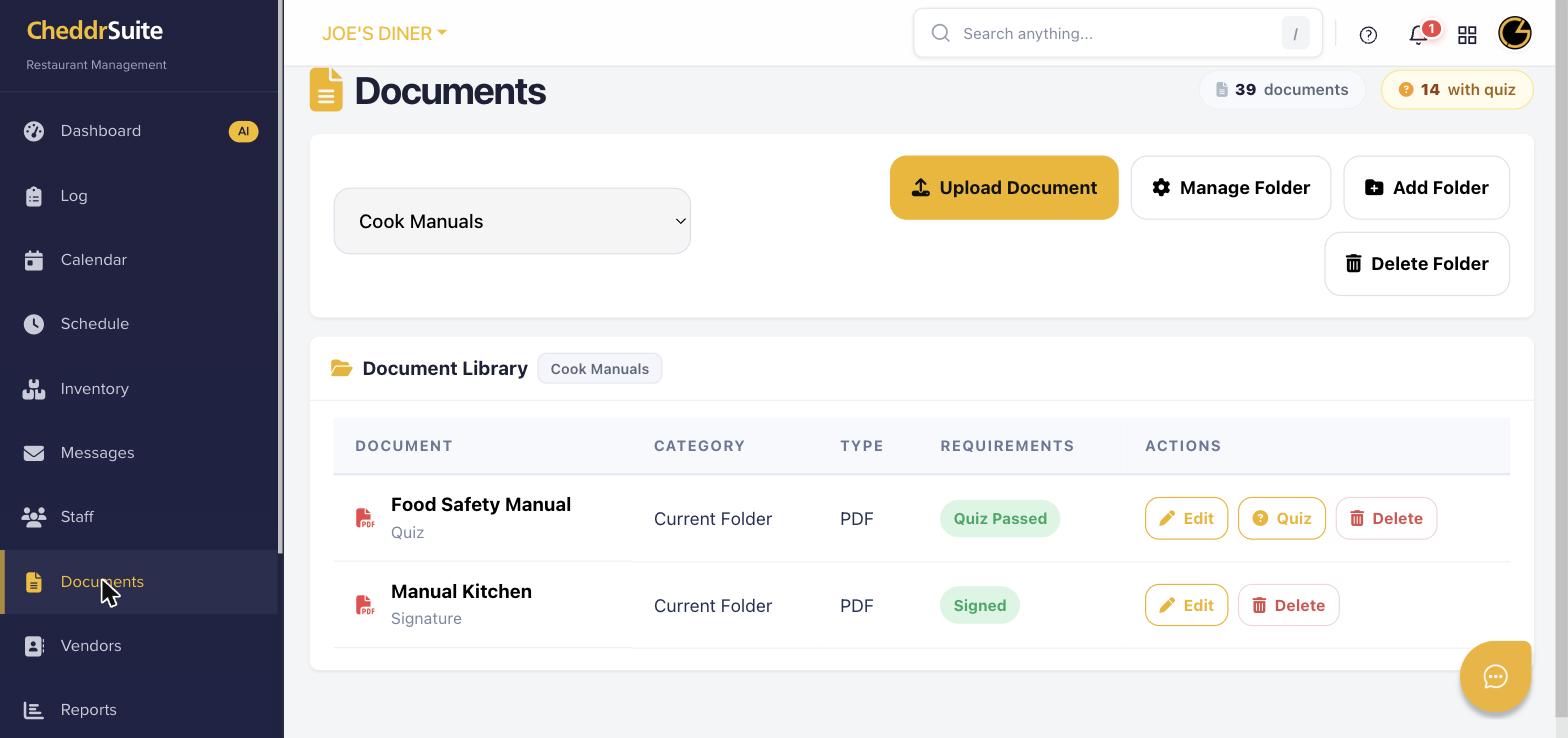
Click Add Question to create multiple-choice questions. Enter the question text, add possible answers, and mark the correct answer for each question.
Step 4: Set Pass Requirements
Set the minimum passing score (e.g., 80%). Staff will need to meet this threshold to have the quiz marked as passed on their profile.
Step 5: Save and Assign
Click Save Quiz when done. The quiz is automatically associated with the document. Staff will take the quiz after reading the document the next time they access it.
Was this article helpful?
That’s Great!
Thank you for your feedback
Sorry! We couldn't be helpful
Thank you for your feedback
Feedback sent
We appreciate your effort and will try to fix the article