Overview
The Sales Reports module lets you analyze revenue trends over any date range. You can filter by service time, group results by day, week, or month, and compare against the prior year.
Step 1: Navigate to Reports
Click Reports in the left navigation menu. The Sales Reports tab will be selected by default.
Step 2: Set Your Filters
Use the Field dropdown to select the metric (e.g., Sales, Tax, Guest Count). Set your Start Date and End Date, and choose a Service Time (Breakfast, Lunch, Dinner, or All).
Step 3: Choose Group By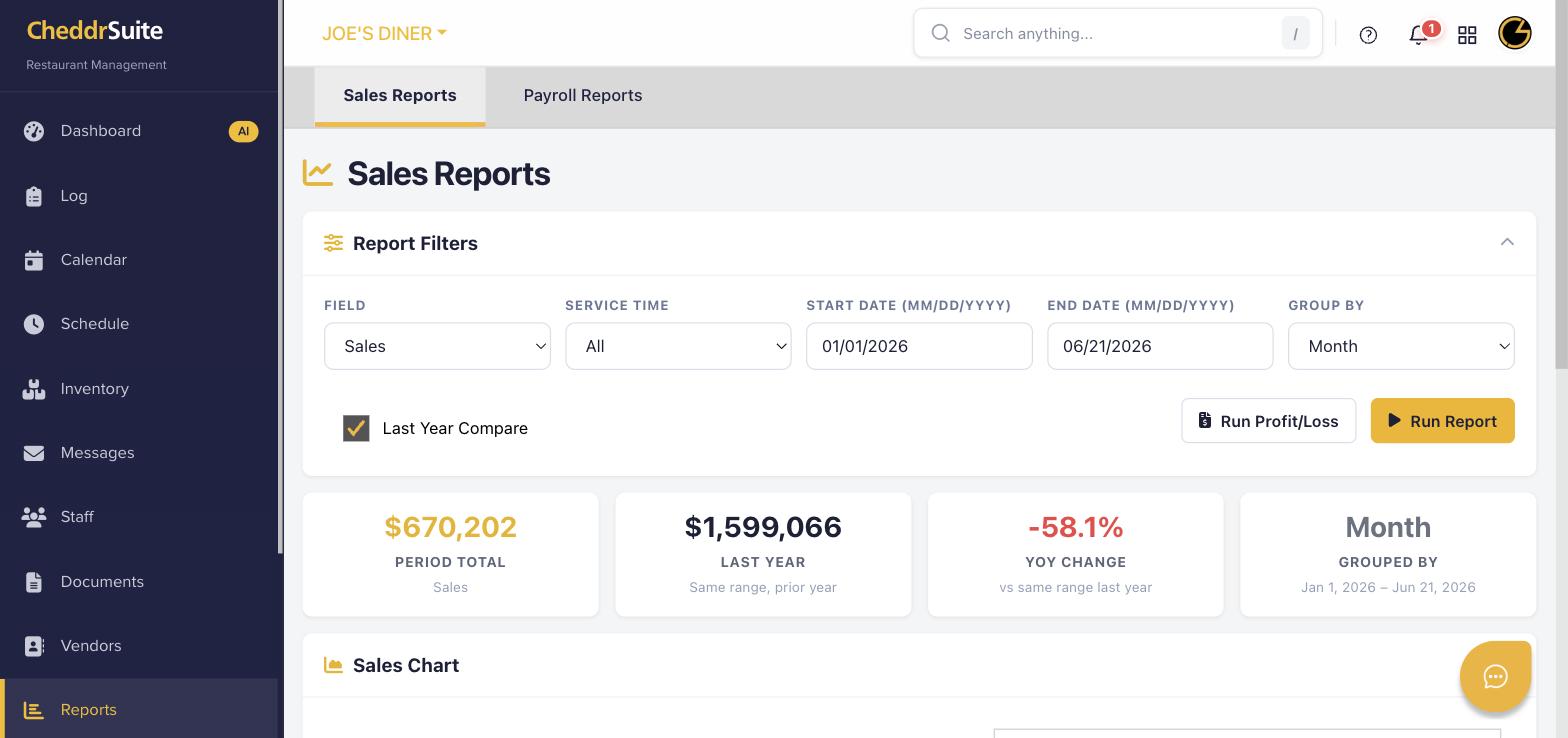
Select how to group results: Day, Week, or Month. Enable Last Year Compare to display year-over-year performance side by side.
Step 4: Run the Report
Click Run Report to generate the sales chart and data table. A summary at the top shows total for the period, last year's comparison, and the percentage change.
Step 5: Export or Run Profit/Loss
Click Run Profit/Loss to generate a full P&L breakdown using your cost settings. Use the print function or export options to save the report for review.
Was this article helpful?
That’s Great!
Thank you for your feedback
Sorry! We couldn't be helpful
Thank you for your feedback
Feedback sent
We appreciate your effort and will try to fix the article